
If you have a finished draft in a Word .docx and you need it inside a Google
Doc, retyping it by hand is slow and pasting it often breaks the formatting.
There is a third option: let a Chrome extension type the document in for you,
automatically, at a natural pace — while you do something else.
The short version
- Retyping by hand works but is slow and error-prone.
- Copy-paste is fast but frequently strips or scrambles Word’s formatting — here is why that happens.
- Automatic typing with DocxPacer enters your
.docxinto the doc you already have open, one keystroke at a time, keeping bold, italics, alignment and lists — and it can pause and resume across days.
Why “automatically type” rather than paste?
Google Docs and Word store formatting differently, so anything that moves text between them has to translate the styling. Pasting hands Google Docs a tangle of hidden Word markup, which is where headings collapse and spacing goes strange.
Typing sidesteps that problem. When text is entered character by character into
the doc you already have open, it becomes native Google Docs content as it
lands — there is no bulk conversion step to go wrong. It also means the text
goes into your existing document, not a separate converted file the way
Google’s built-in .docx upload works. If you want the full comparison of every
method, see how to import a Word .docx into Google Docs without losing
formatting.
How to automatically type a .docx into Google Docs
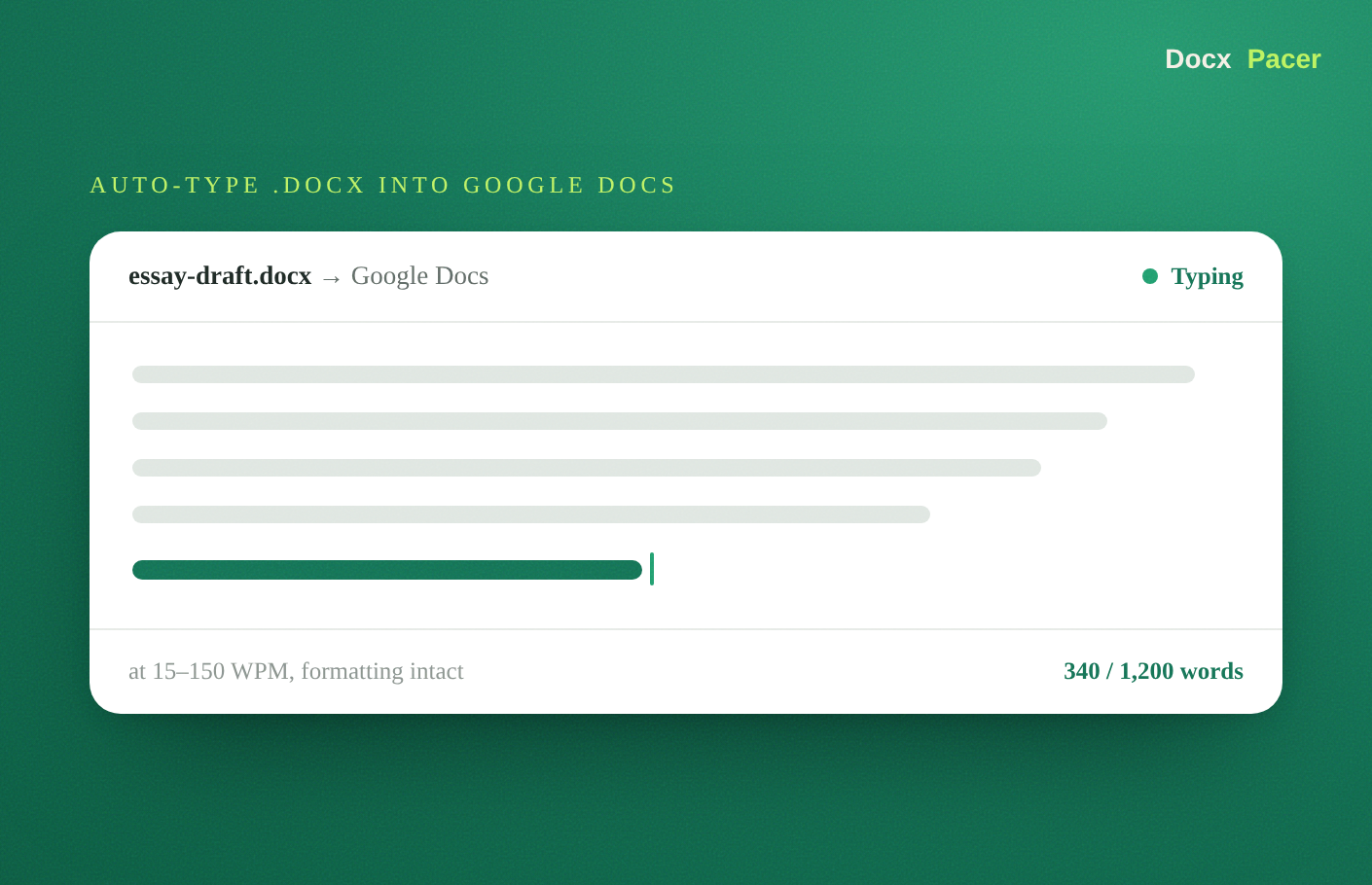
DocxPacer is a Chrome extension that does exactly this. It reads a .docx you
choose and types it into the Google Doc open in your current tab. Here is the
whole flow.
Step 1 — Open the Google Doc
Open the doc you want the text in — a new one, or an existing document at the point where you want the new text to go. Click in the doc so the cursor is where typing should start.
Step 2 — Pick your .docx file
Click the DocxPacer icon in Chrome. Choose the Word .docx file you want typed
in. The panel shows a quick preview: the word count, an estimated session
length, and the time it expects to finish.
Step 3 — Set your pace
Pick a speed with the slider — anywhere from 15 to 150 words per minute — or give it a target instead, like “200 words in 40 minutes,” and it plans the rhythm for you. This is what makes the result read like real writing rather than an instant paste: short bursts, small pauses, natural cadence.
Step 4 — Press Start
Press Start and the document begins typing into your doc. You can watch the
live word-count progress, or switch to another tab and let it run in the
background. Bold, italics, underline, alignment and lists carry across from the
.docx as it goes, so you do not have to re-apply anything afterwards.
What if the document is long?
Long documents do not have to go in one sitting. DocxPacer can resume across days — run a session today, close the tab, and pick up where you left off tomorrow. It checks what is already in the doc and continues from there, so a long report or manuscript goes in steadily instead of all at once. There is a full walkthrough in how to resume typing in Google Docs where you left off.
Common questions and edge cases
- Can I keep working while it types? Yes — start the session and switch tabs. The typing engine runs in the background and keeps going even if you close the panel.
- What about really long files? There is no daily document limit on the free tier. For very long drafts, use the resume feature so a session that gets interrupted continues cleanly next time.
- Try not to type in the doc while it runs. Let the extension have the doc to itself during a session, and use another tab if you need to work on something else.
Is this just an “auto typer”?
In the plain sense, yes — it types text so you do not have to. If you want the background on what these tools are and how they differ from macros or paste, see what is an auto typer for Google Docs. The practical value is simple: your finished draft ends up in the right Google Doc, with its formatting intact, without you retyping a word.