
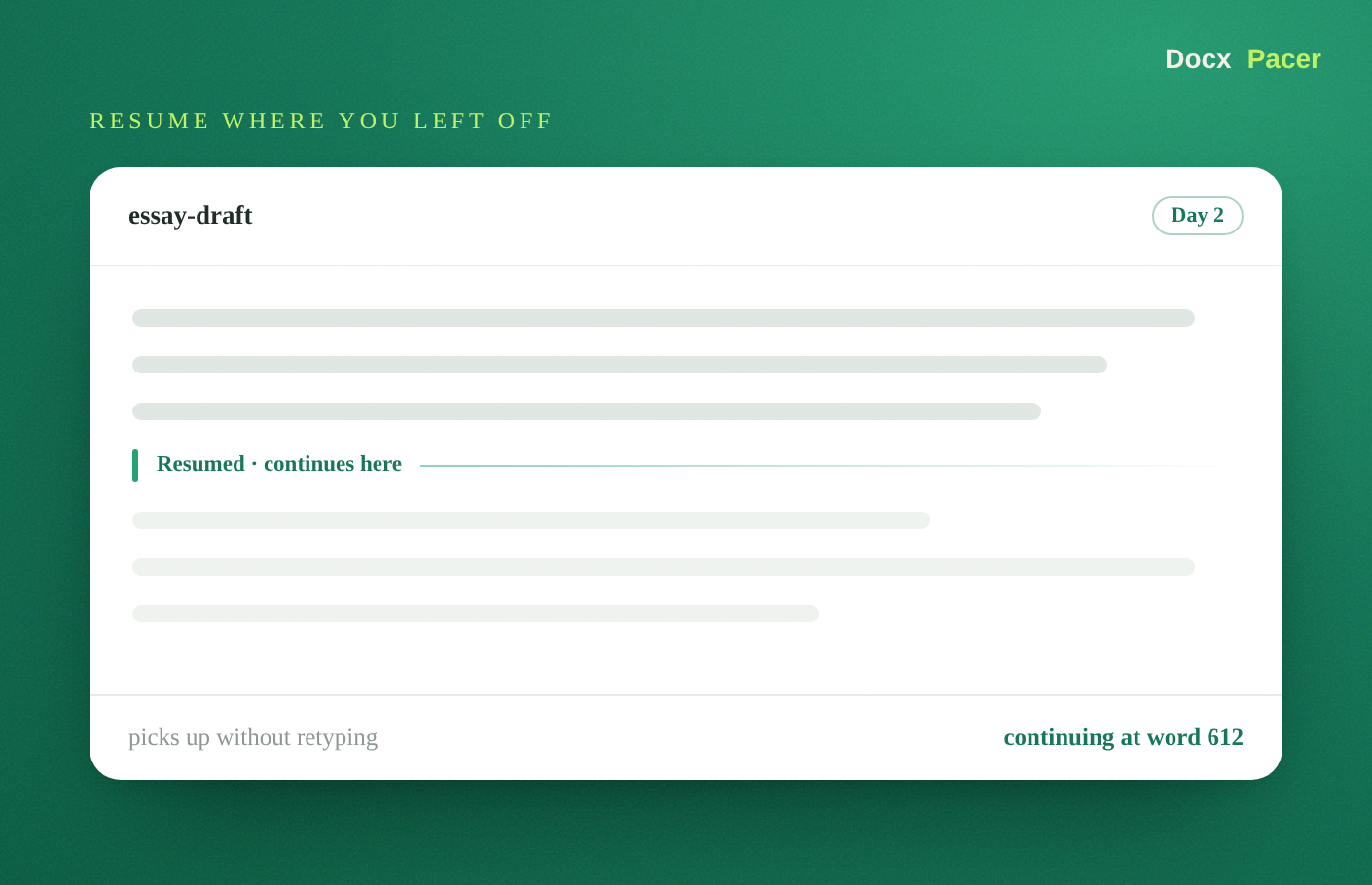
Entering a long document into Google Docs at a natural pace can take a while — and you will not always want to sit through the whole thing in one go. The useful part is being able to stop, close the tab, and come back later without losing your place or retyping anything. Here is how resuming works.
The short version
- A long
.docxdoes not have to go into Google Docs in one session. - DocxPacer lets you stop, leave, and continue later — even on a different day.
- When you start again with the same doc and file, it finds where you stopped and continues, so nothing gets repeated.
Why resume instead of starting over?
If you are typing a .docx into Google Docs automatically, a long file can represent a lot of typing time. Being forced to finish in one sitting — or to start from the top every time you reopen the doc — would make long documents impractical.
Resuming solves that. You treat a long document as several shorter sessions: some today, some tomorrow, whenever it suits you. The rest of the draft still lands in the right place, in order, with formatting intact.
How resuming works, step by step
Step 1 — Reopen the same doc and file
Open the same Google Doc you were adding text to, and choose the same source
.docx in the DocxPacer panel. Matching both is what lets it line up where you
were.
Step 2 — Start the session again
Press Start. Before typing, DocxPacer reads what is already in the document and compares it against your source file to locate the point you reached last time. It also keeps a local checkpoint of how far a session got, as a fallback.
Step 3 — Continue from where you stopped
Typing picks up from that point and carries on with the remaining text. What is already in the doc stays as it is — the session does not repeat it — and the new text continues in order, keeping bold, italics, alignment and lists as it goes.
Tips for multi-day sessions
- Keep using the same file. Resuming works by matching the doc against your
source
.docx, so continue with the same file you started with. - Let the extension have the doc. Try not to type into the document yourself while a session is running; use another tab if you need to work elsewhere.
- Long is fine. There is no daily document limit on the free tier, so a long manuscript spread over several days is a normal use, not an edge case.
A note on how the document builds up
Because the text is typed in gradually rather than pasted all at once, the document fills in the way real writing does. If you are curious about what Google Docs records as you work, this explains what teachers and others can and cannot see in a Google Doc’s edit history — it is worth understanding how version history works before you rely on any tool that types for you.
Resuming is really about making long documents manageable: you get your whole draft into the right Google Doc over as many short sessions as you like, without retyping and without losing your place.