
Moving a Word document into Google Docs sounds simple — until your headings collapse, your spacing goes strange, or carefully bolded text comes out plain. There are three practical ways to do it, and the right one depends on whether you want a quick converted copy, a fast paste, or your draft typed cleanly into a doc you already have open. Here is how each method works, what it keeps, and where it falls short.
The short version
- Upload and open with Google Docs — fastest, keeps most formatting, but creates a new converted file.
- Copy and paste — quick, but frequently strips or scrambles Word’s formatting.
- Type it in with DocxPacer — enters your
.docxinto an existing doc at a natural pace, keeping bold, italics, headings, and alignment.
Why Word formatting breaks in Google Docs
Word and Google Docs store formatting in completely different ways. A .docx
file wraps your text in Microsoft’s styling model — fonts, spacing rules,
heading styles, and layout settings that Google Docs does not use natively.
Whenever your document crosses from one app to the other, something has to translate that styling. The built-in importer converts most of it well, but edge cases — custom fonts, tables, columns, fine spacing — get approximated or dropped. Copy-paste is worse: it hands Google Docs a tangle of hidden Word markup that often can’t be mapped cleanly, so the result looks inconsistent — here is exactly why, and how to fix it.
Knowing that, here are the three ways to make the move — from least to most control over the final doc.
Method 1: Upload and open with Google Docs
This is the fastest route when you just need a standalone copy in Google Docs.
- Open Google Drive and click New → File upload.
- Choose your Word
.docxfile and wait for it to finish uploading. - Right-click the uploaded file and pick Open with → Google Docs.
Google Docs creates a converted copy and keeps most everyday formatting — bold, italics, headings, and lists usually survive. The trade-offs: it always produces a new document (not your existing one), and anything complex — custom fonts, multi-column layouts, precise spacing — can shift during conversion. For a plain report or essay, it is often good enough.
Method 2: Copy and paste from Word
Best when you only need a section, not the whole file.
- Open the
.docxin Word (or any editor) and select the text you want. - Copy it, then paste it into your Google Doc.
It is instant, and it drops straight into a doc you already have open. But paste is where formatting goes to die: Word’s hidden styling frequently lands as mismatched headings, odd spacing, or the wrong font. And if you use Paste without formatting (Ctrl+Shift+V) to avoid the mess, you lose all styling — including the bold and italics you wanted to keep. Fine for a quick paragraph; risky for anything structured.
Method 3: Type it in with DocxPacer
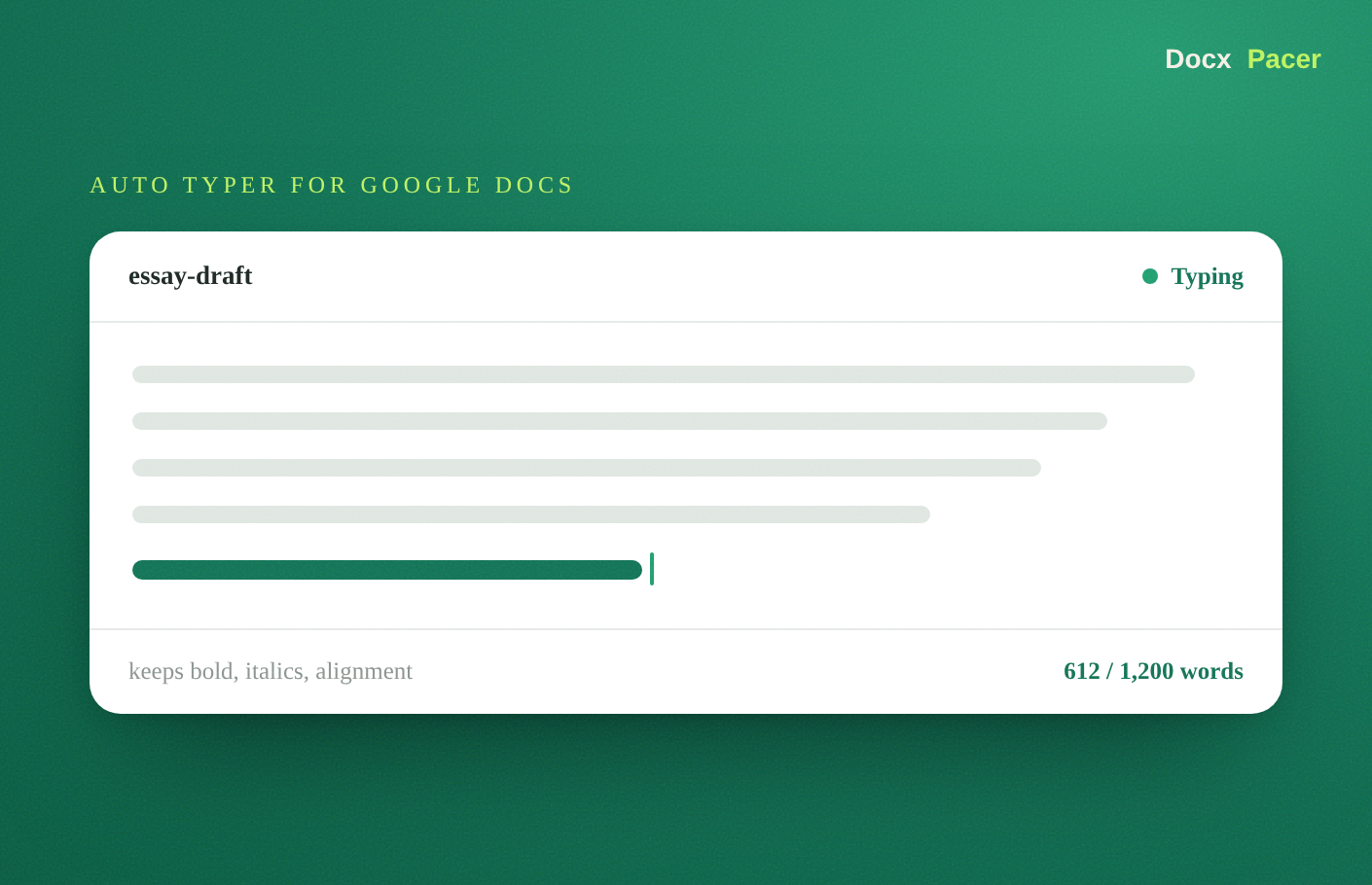
If you want your Word draft inside a specific Google Doc, entered naturally and with its formatting intact, DocxPacer — an auto typer built for Google Docs — does the moving for you.
Instead of pasting the whole file at once, DocxPacer types your .docx into
the Google Doc you already have open — at a realistic, human pace — while keeping
bold, italics, headings, and alignment. Everything runs on your device, so the
document is never uploaded anywhere, and you can resume across days, which is
handy for a long draft you would rather not enter in one sitting.
- Open the Google Doc you want the text to go into.
- Click the DocxPacer icon in Chrome and pick your
.docxfile. - Press Start — DocxPacer types it in for you.
It is the most hands-off option when the goal is a clean draft in the right doc, not a separate converted file.
Which method should you use?
| Method | Keeps formatting | Into an existing doc | Best for |
|---|---|---|---|
| Upload & open | Most of it | No — new file | A quick standalone copy |
| Copy & paste | Often loses it | Yes | A short section |
| DocxPacer | Bold, italics, headings, alignment | Yes | Entering a full draft cleanly |
If you only need a converted copy, Google’s built-in import is the fastest path. If you need a whole Word draft placed into a doc you already have — without the paste mess — that is exactly what DocxPacer is built for.