
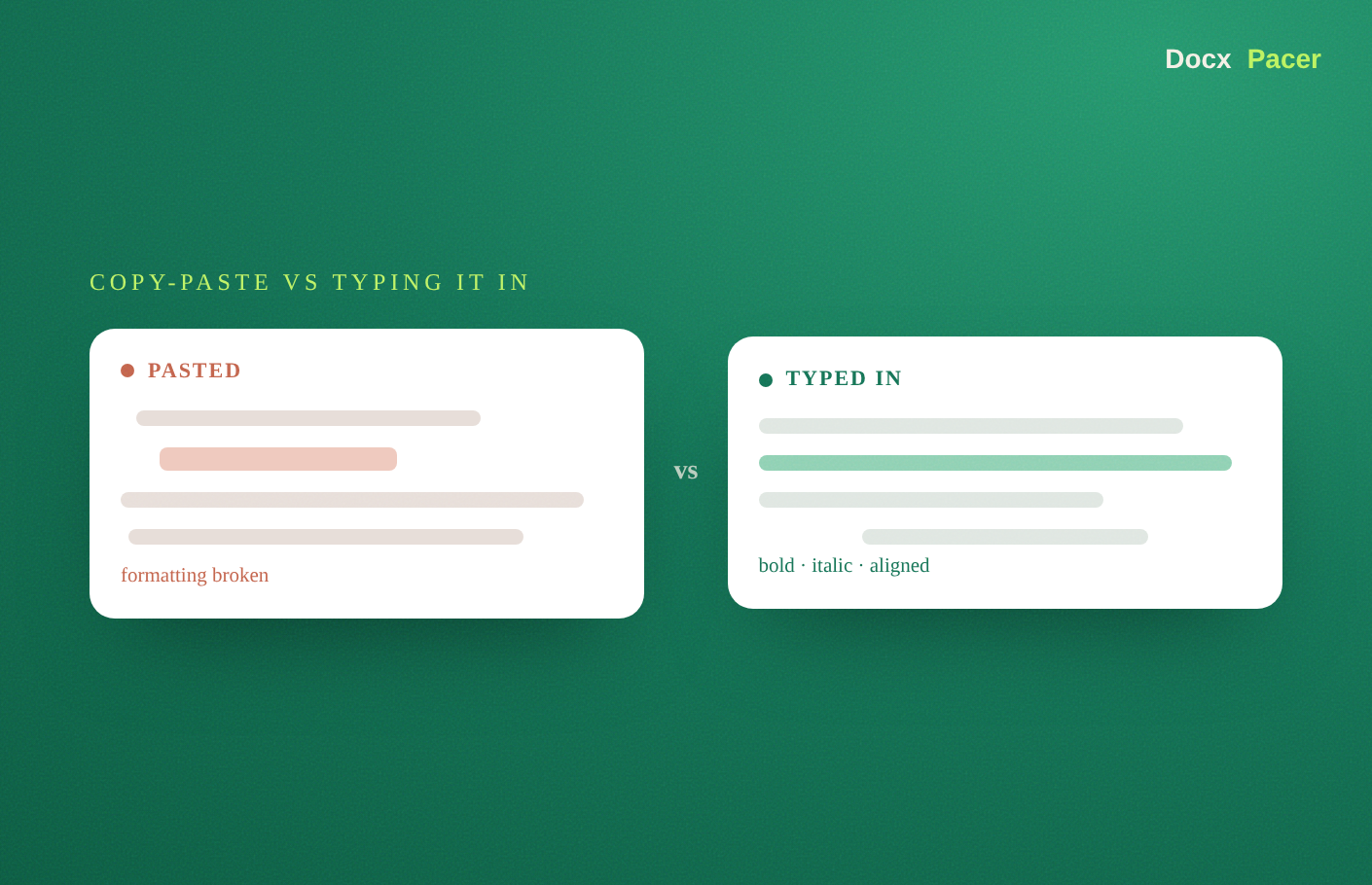
You have a finished draft in Word and you need it in Google Docs. The two instinctive moves are to paste it or to retype it — and both have real drawbacks. Here is an honest look at how each one actually behaves, so you can pick the right one for the job in front of you.
The short version
- Copy-paste is instant but frequently breaks Word’s formatting and lands as one bulk edit.
- Retyping by hand keeps formatting under your control but is slow and tedious.
- Typing it in automatically (with a tool like DocxPacer) keeps formatting and enters it into the doc you already have open — slower than paste, far faster than retyping.
Copy-paste: fast, but lossy
Pasting is the quickest thing you can do, and for a rough throwaway it is fine. The problem is fidelity. Word wraps your text in its own styling model, and when you paste, Google Docs receives a tangle of hidden Word markup it often cannot map cleanly. The result: collapsed headings, shifted spacing, fonts that change, lists that lose their structure. If you have seen this happen, there is a full explanation of why copy-paste loses Word formatting in Google Docs.
Copy-paste is good when: you want the raw text quickly and do not care about formatting, or you plan to re-format everything by hand anyway.
Copy-paste is bad when: the formatting matters and you do not want to spend ten minutes fixing headings and spacing afterwards.
Typing it in: slower, but clean
Typing the document into the doc — whether by hand or automatically — avoids the bulk-conversion step that breaks paste. Each character becomes native Google Docs content as it lands, so bold, italics, underline, alignment and lists come through intact. The trade-off is time: typing is slower than a paste.
Retyping by hand gives you that clean result but costs real effort. Automating
the typing keeps the clean result without the effort — a Chrome extension like
DocxPacer reads your .docx and types it into Google Docs
automatically at a
pace you set, from 15 to 150 words per minute, and can even resume across days
for long documents.
Typing it in is good when: you want the formatting preserved and the text placed inside a specific doc you already have open.
Typing it in is bad when: you genuinely just need the raw words this second and formatting is irrelevant.
Side-by-side
| Copy-paste | Retype by hand | Type in automatically | |
|---|---|---|---|
| Speed | Instant | Very slow | Moderate (paced) |
| Keeps formatting | Often no | Yes (your effort) | Yes |
| Goes into an existing doc | Yes | Yes | Yes |
| Effort from you | None | High | None after Start |
| Good for long docs | Yes, but messy | Painful | Yes (can resume) |
What about Google’s built-in import?
There is a fourth option worth knowing: uploading the .docx and opening it
with Google Docs. It keeps most formatting and is quick — but it always creates a
new converted file rather than putting the text into a doc you already have
open. The full rundown of all the methods, including this one, is in how to
import a Word .docx into Google Docs without losing
formatting.
So which should you use?
Be honest about what you need:
- Rough text, right now, formatting doesn’t matter → paste it.
- Clean formatting, into a doc you already have open → type it in (automatically, so you are not retyping by hand).
- Just want a converted copy fast → upload and open with Google Docs.
There is no single winner — paste wins on speed, typing wins on a clean final result. Pick the one that matches the job, and you will spend a lot less time fixing formatting after the fact.